Terraform State, Explained
By the end of this post you will understand what is actually inside your Terraform state file, and you will know how to run it so a teammate's apply never corrupts it and a secret never leaks out of it.
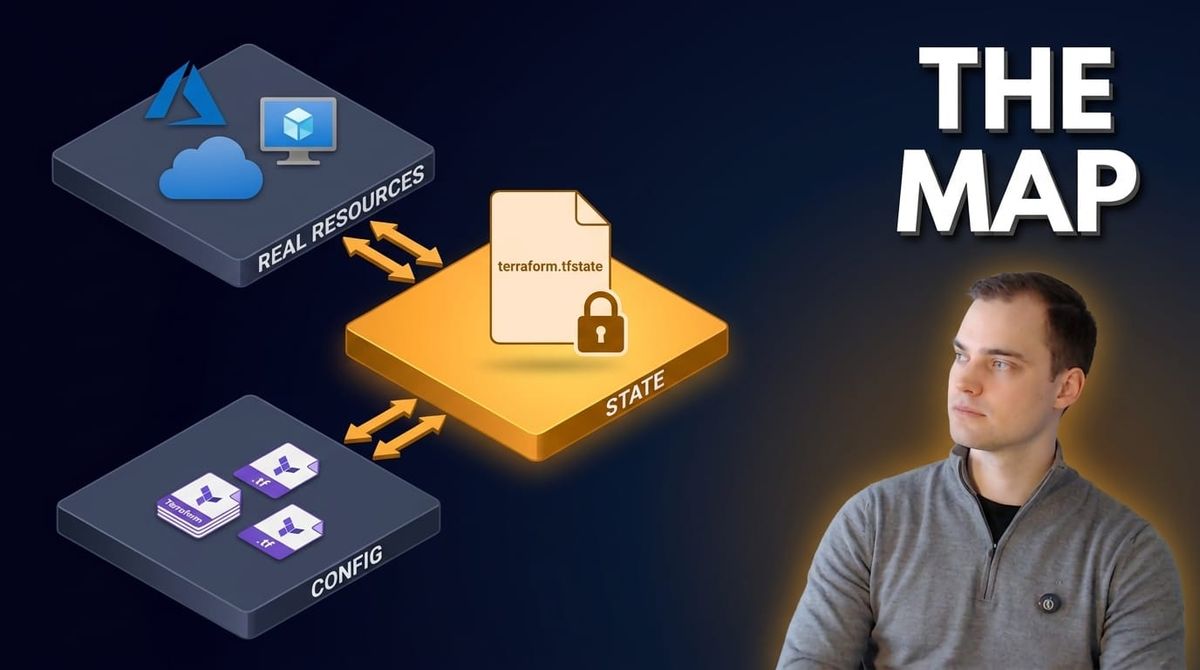
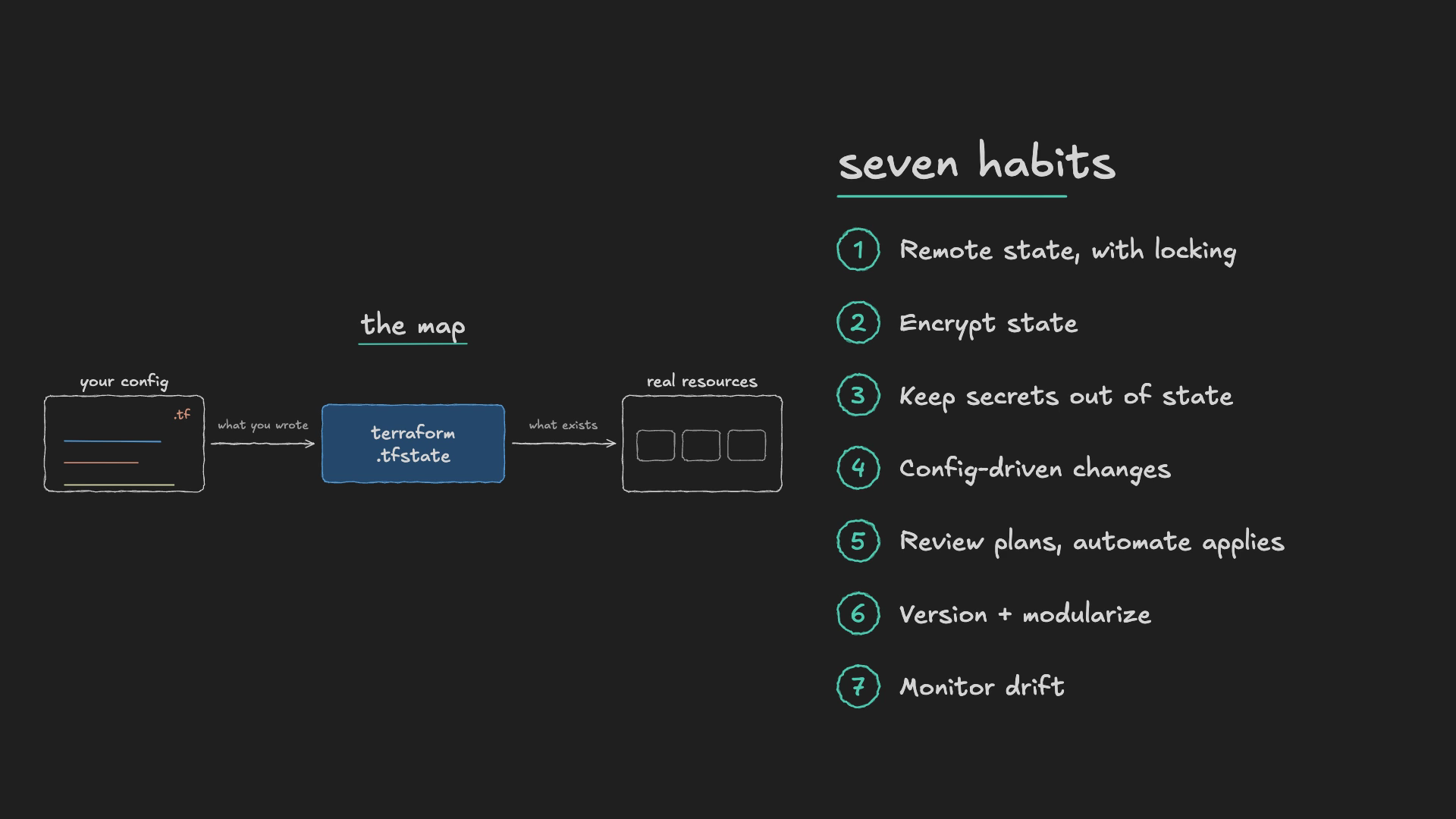
Here is the whole idea in one line. State is just Terraform's map between the config you wrote and the resources that really exist in the cloud. Once you see it that way, seven habits keep that map shared, locked, encrypted, and honest. I will show you every one of them.
I am an Azure MVP, and in my day job I work on a team that collaborates on running Terraform against real infrastructure in the cloud, in my case Microsoft Azure. So this is not the tutorial version. It is the setup I actually run for real teams, and everything below is what I have learned first hand doing it. It works whether you are solo or on a team of ten.
What Terraform state actually is
You can think of Terraform state as a snapshot of the infrastructure Terraform manages. That is everything from resource attributes and properties to metadata and tags.
This matters because state is what you think your infrastructure looks like when you read your Terraform configuration. At least, that is the goal. You want to be able to look at your config and your state and have confidence that this is what is really out there in the live infrastructure.
The mental model: three ideas
You can explain state with three ideas. Get these and the rest of the post is just habits built on top.
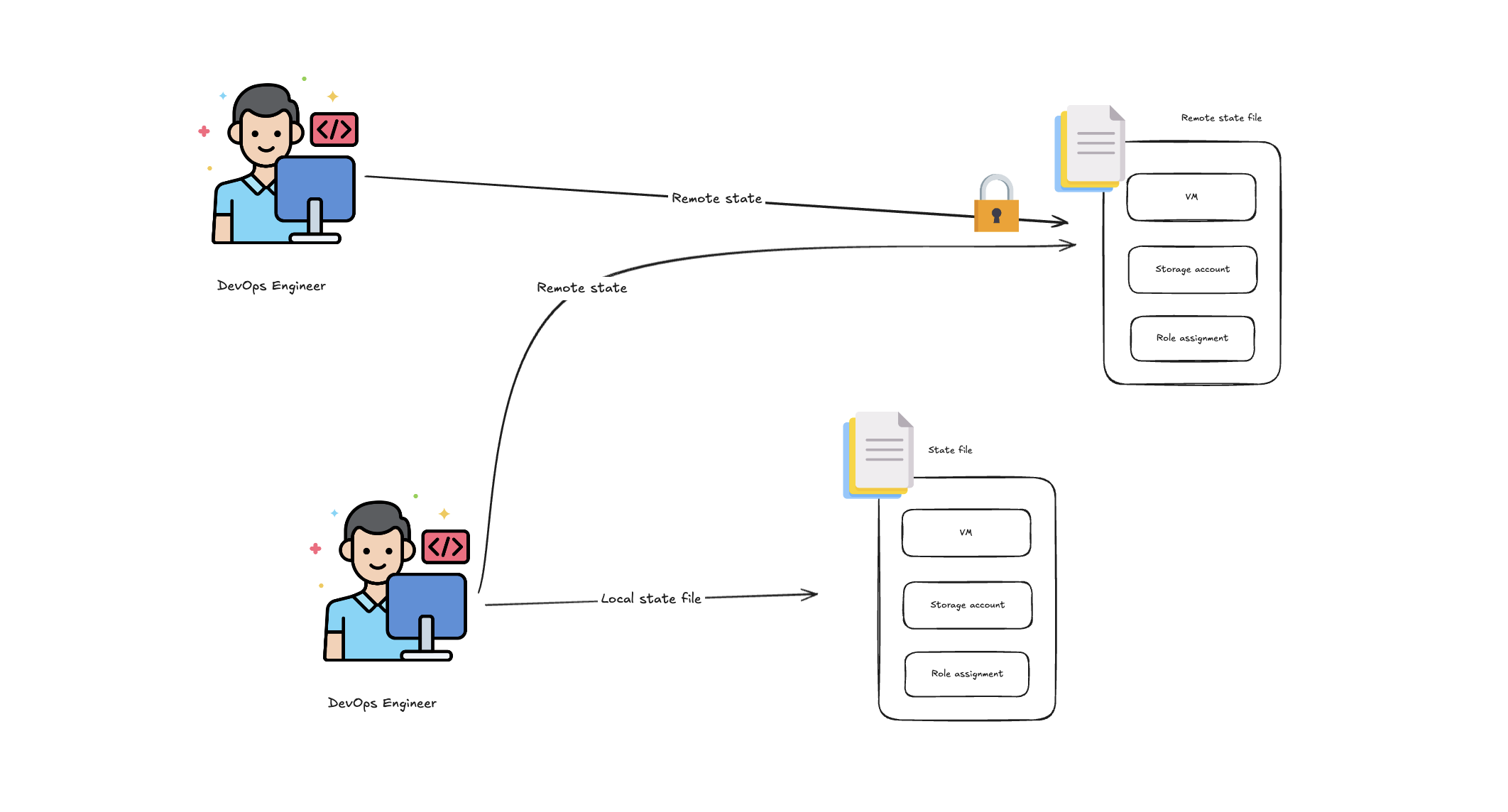
Idea one: the state file itself. It is just a file, on your machine or somewhere else, and it keeps track of your resources. That could be a virtual machine or a storage account. It can also track things you might not think of as resources, like a role assignment or a role definition, because those are things Terraform can manage too.
Idea two: local versus remote state. You can keep the state file on your own computer as a local state file, and run terraform plan and apply against it with no problem at all. You usually see local state in videos and tutorials like this, because we are doing demos and labs, so there is no reason to keep it anywhere else. But the moment you work at a company or on a team, a local file breaks down. Your co-worker cannot reach a file that lives on your laptop. That is why real teams use remote state: a shared state file in a backend both of you can work against.
Idea three: remote state locking. When you run an operation against remote state, whether that is a plan or an apply, Terraform puts a lock on the state file. If your co-worker tries to run anything against the same state while you hold the lock, they get an error telling them the state is locked. When you finish, the lock is released and then they can take it. This is what stops two people from overriding each other's changes and corrupting the file. Picture ten people on a team: it is important that not all ten of you are writing to the state at the same time, or the file has no way to keep straight what you actually want your infrastructure to be.
With that model in place, here are the seven practices that turn it into a safe, team-ready workflow.
Practice 1: Prefer remote state with locking and isolation
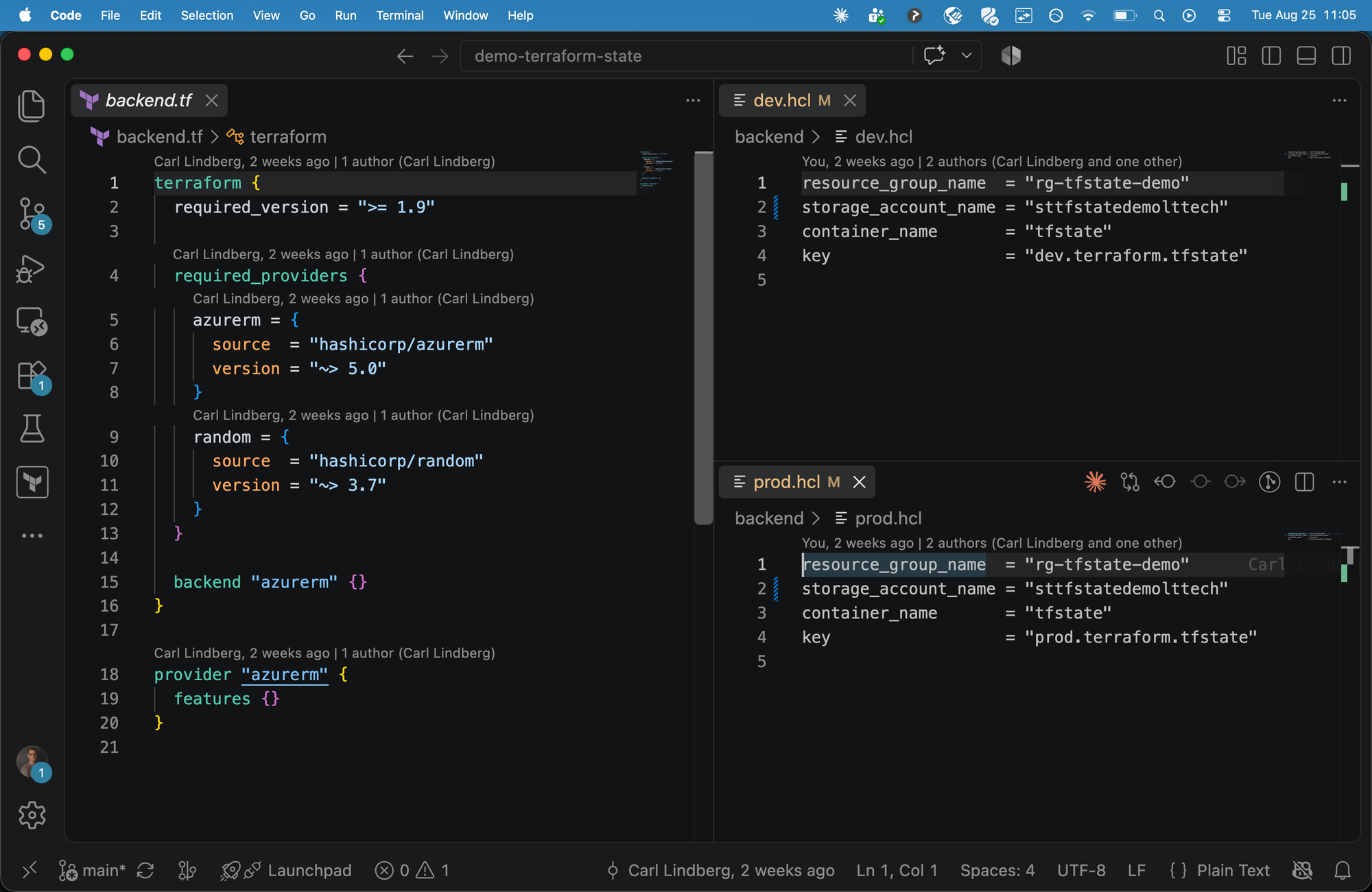
Not just remote state, but remote state that supports locking and isolation. If you use Microsoft Azure like I do, Azure Storage gives you this out of the box. You do not have to think about it.
Usually there is a file called backend.tf. Inside the usual terraform block, alongside the providers, there is a backend block pointed at azurerm for example. That tells Terraform we are using Azure as our remote backend. You could just as easily point it at Google, AWS, or HashiCorp's Terraform Cloud. The block names a resource group, a storage account, a container (could be called tfstate), and a key. When you run init, Terraform picks this up and knows to use Azure remote state.
One note from experience. When I am working with a team we often use a Terraform wrapper, a small CLI application that wraps certain Terraform operations. That is a bit much to cover here and it is not really about state, but it is a good option and maybe a topic for a future post. When we do that we will usually have defined an empty backend config: backend = {} and the backend config gets passed inline by the wrapper.
Practice 2: Enable strong encryption for state
Once you are on remote state, make sure your provider encrypts it. Because I use Azure, I know Azure Storage is encrypted at rest by default.
One thing I would add from the real world. If you are using Azure Storage for state, do not hand out access with SAS keys. Use Entra ID authentication to grant people access to the storage account instead.
Encryption at rest does not mean everything is automatically fine, though. To see why, we need to talk about secrets in state, which is the next practice.
Practice 3: Minimize secrets stored in state
Terraform state can hold sensitive values. You might set a password on a virtual machine, or a connection string to a database. Those land in the state file.
If I use a random_password resource with a length of 24 characters, and its result is referenced when setting a Key Vault secret, both of those are recorded in plain text in state. If I go into the storage account that holds my state, open the container, and click edit on the state file, I can read the contents. It is encrypted at rest, but I am authenticated, so I am allowed to see it.
At this point you might say there is a sensitive property you can set to true. That is correct, and you should. But read what it actually does. Hover over it and the tooltip says it controls whether the output contains sensitive material and should be hidden in the UI. That is the key difference. It says the output should be hidden. It does not say the value should be encrypted, or not recorded at all.
So sensitive = true marks the output as sensitive, which is genuinely useful. If you are running in a pipeline like GitHub Actions or Azure DevOps, you do not want the password visible to anyone who can open the run and read the output. But if someone has access to the state itself, they can still read the value in clear text.
If you want to keep a secret from ever being recorded in state in the first place, there is a resource block for that now, called ephemeral. I have made a dedicated video on ephemeral blocks if you want to go deeper on how that works.
Practice 4: Use config-driven state changes
Prefer declarative changes over manual surgery, so state edits stay auditable and reviewable. There are two ways to change state beyond plain plan and apply.
The first is CLI-driven, using inline commands: terraform state mv to move something, or terraform state rm to delete something.
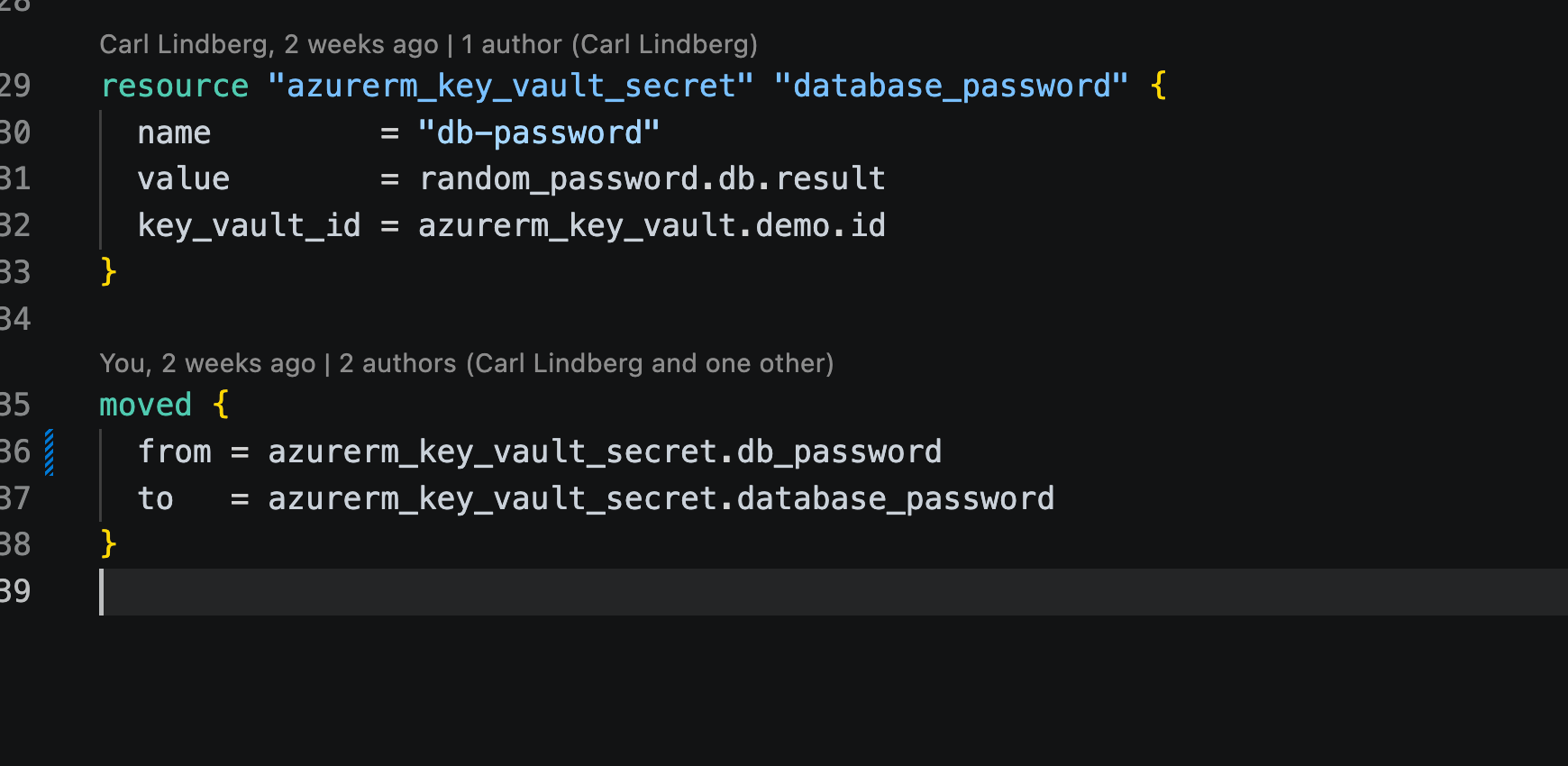
The second is config-driven, using Terraform blocks that are the equivalent of those CLI commands. Take a real example. Say a Key Vault secret was originally named .db. Just looking at that, it is not obvious it is the database password, especially since terraform state list will not show you all the properties. So the administrator renames it from .db to .database_password, and adds a moved block that says the resource formerly called .db is now called .database_password.
This is the way I recommend you do it, because it gets checked into a pull request where someone can review it, and it is tracked in version control. You could achieve the same rename by running terraform state mv by hand. If you do, Terraform connects to state, acquires the lock (remember the locking from earlier, it matters here too), and moves the resource. But that hand-run move leaves no trace. With the moved block, when you run apply, Terraform shows you that the resource has moved from the old name to the new name and asks you to confirm, and the change lives in the diff.
Same outcome either way, but only one of them survives code review.
Practice 5: Review plans and automate applies
Route plans and applies through CI/CD, not from local machines and laptops. That is how you enforce approvals and add checks and controls before your code reaches production.
There are several ways to do CI/CD. I use GitHub these days, so all I need is a workflow file under .github/workflows. It runs pretty much the same commands I would run locally, just inside a GitHub Actions runner instead.
The real benefit is what you can insert around those commands. For example, Open Policy Agent, which lets you check for blast radius. The short version is that you can use OPA to enforce policy on the changes in your environment. Maybe you want to block configurations that would destroy or redeploy a lot of resources. That is a blast-radius policy, and you can add it as a step in CI. If the check does not pass, the pipeline fails. I have a dedicated Policy as Code video if you want the full story. For state, the point is simply that this gating is something you want once you are automating applies.
Practice 6: Version and modularize your configuration
This practice is not strictly about state, but it is closely related, because it is how you think about implementing changes and writing to state safely.
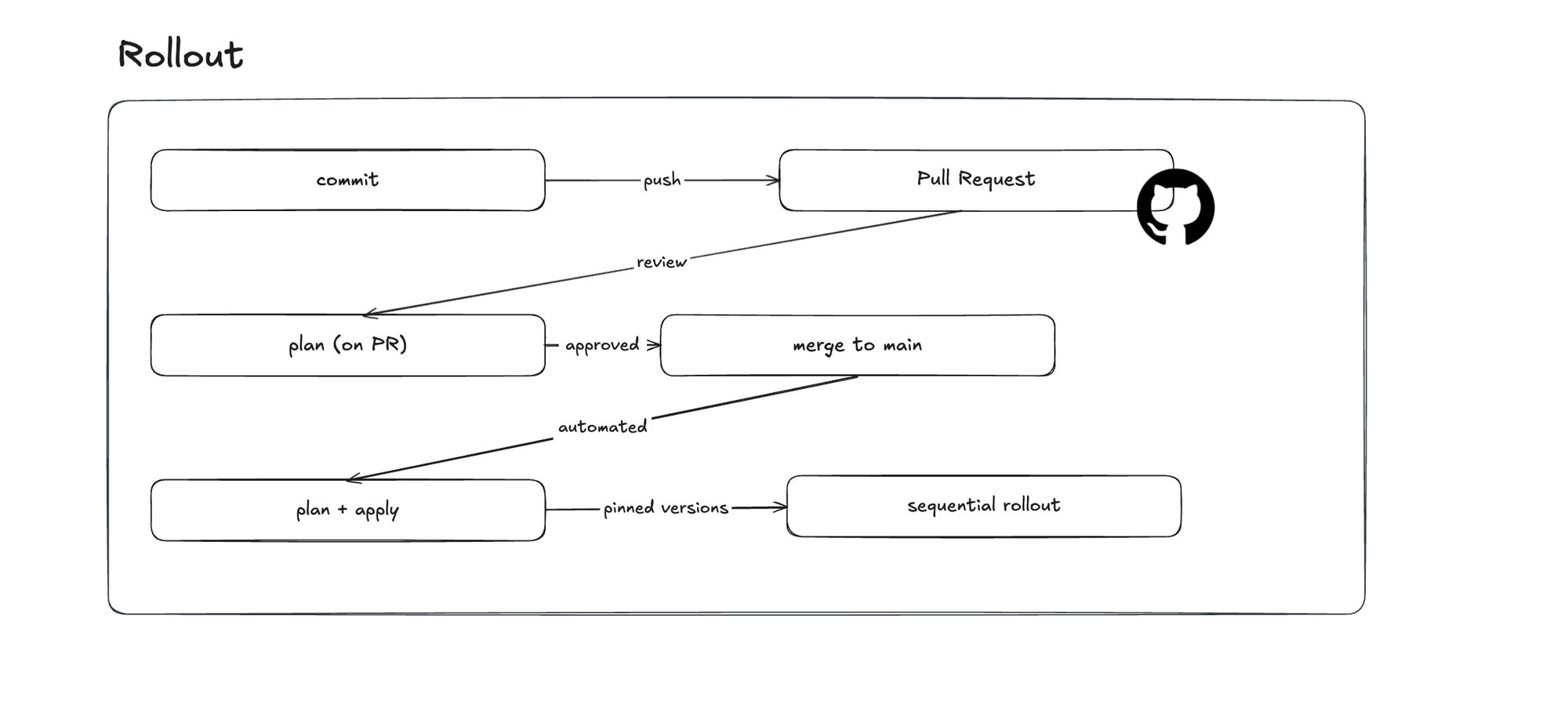
Here is the flow I use on any team. I make code changes, commit, push to GitHub, and open a pull request. Opening the PR automatically runs plan, so a reviewer can glance at the plan and confirm nothing weird happened. Once the PR is approved, we merge to main, and that automatically kicks off plan and apply against the real environments.
Practice 7: Monitor and remediate drift
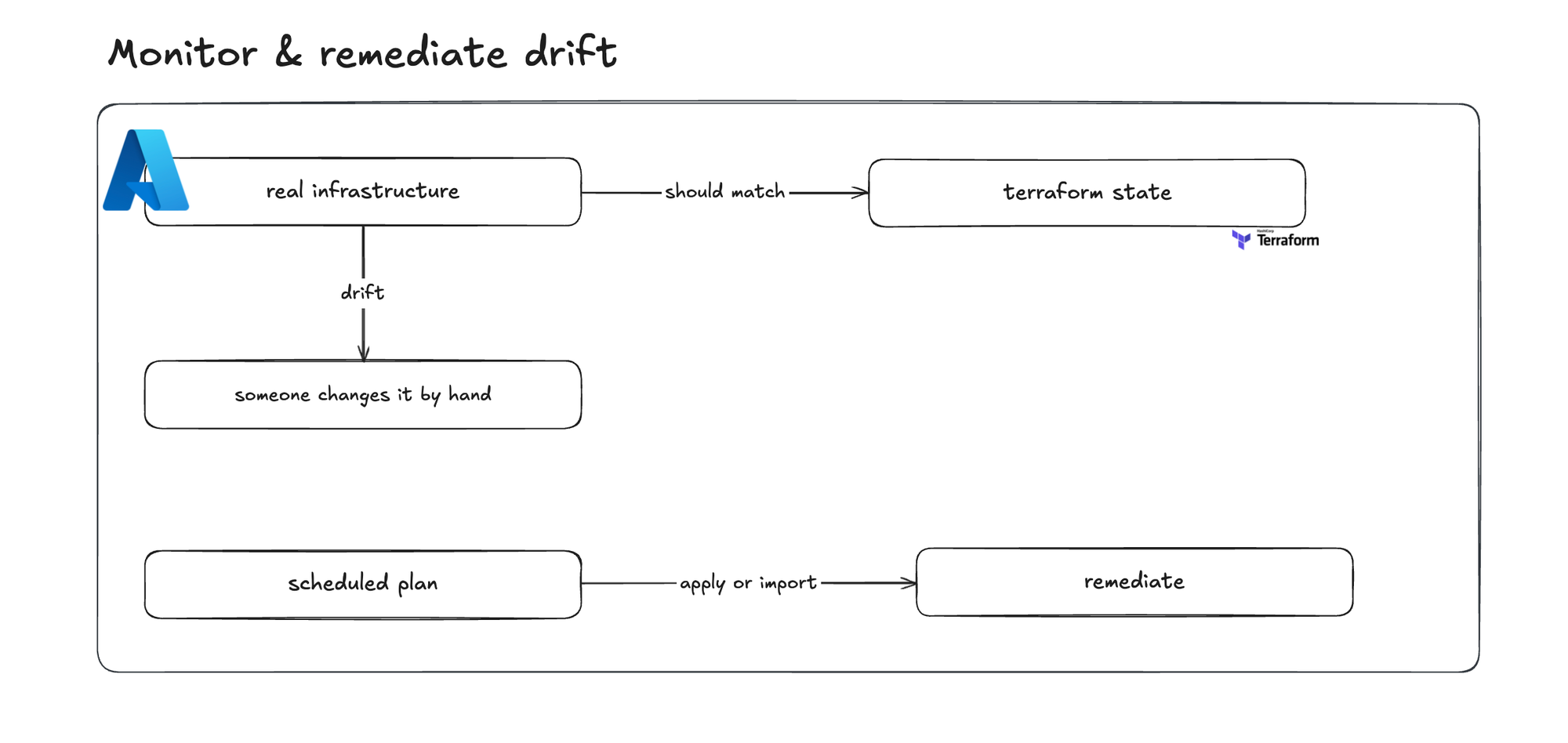
Quick definition first, in case you are new to the term. You have real infrastructure, in my case in Azure, and it should match whatever is in your Terraform state file. Drift is when someone changes a property directly, through the portal or the Azure CLI, and suddenly the real infrastructure no longer matches state. That is worth monitoring for, because if you are going to use infrastructure as code, you want to actually use the tools rather than mix and match.
One thing you could do is run a scheduled plan that applies or imports to bring reality back in line with state. But be careful, because that has real risks. A scheduled apply could change properties on your production resources without you knowing. It is already bad that someone changed something outside of infrastructure as code. It can be worse if something silently changes back, because some properties, when altered, redeploy the resource. If it is a stateless resource like an Azure Function, that may not be the end of the world. But if it is a database or a storage account, you could lose whatever data was in there, and that is really bad.
I will be honest with you: I do not have a specific way that I monitor drift. What we actually do is enforce the four-eye principle. Every change has to be checked into version control, opened as a PR, and reviewed by a co-worker. When you do that, the plan pipelines from the previous practice will show changes you did not expect, or resources changing that were not part of your work. When that happens, you look at previous PRs or the activity logs, figure out if someone made a temporary change, and go talk to that person. It is a semi-automated monitoring system. It is perhaps not the best, but we have not really needed anything more than that. Yours might differ.
Wrap-up
That is state end to end: the map between your configuration and reality, kept shared, locked, encrypted, and honest across a whole team.
The result of these seven habits is a state setup the whole team can run against without stepping on each other, without pasting secrets around, and without one bad apply taking down your software or your infrastructure.
I will leave you with the question I keep coming back to. Do you actually monitor drift? And is there a practice I did not mention here that you think belongs on this list? I would genuinely like to know.
References
 Jack Roper and Flavius Dinu